
Installation of NetXMS - Problems connection to MS SQL Server
-
Dear all.
We have searched this forum and tried several things but it is not working anyway. We try to install a complete new NetXMS and want to use our MS SQL Server behind it.
NetXMS Server Details
OS: Windows Server 2016 Datacenter
NetXMS Version: 4.4.4SQL Server Details
OS: Windows Server 2016 Datacenter
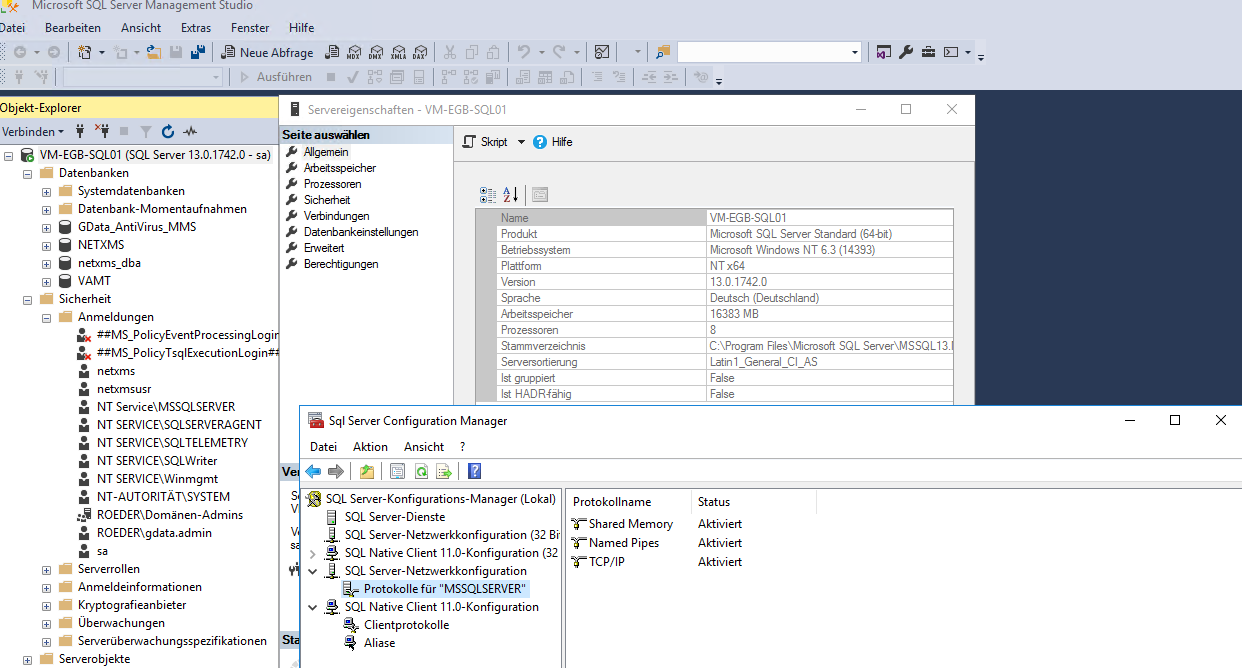
SQL Version: SQL Server Standard 2016 (Version 13.0.1742.0)
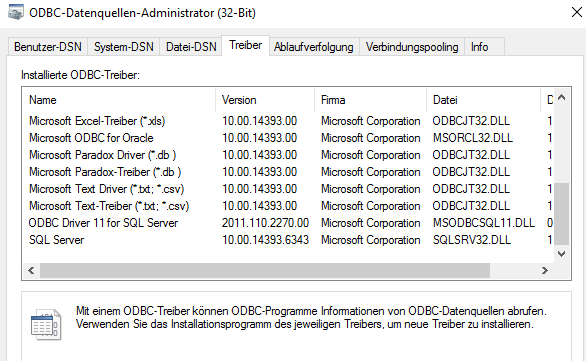
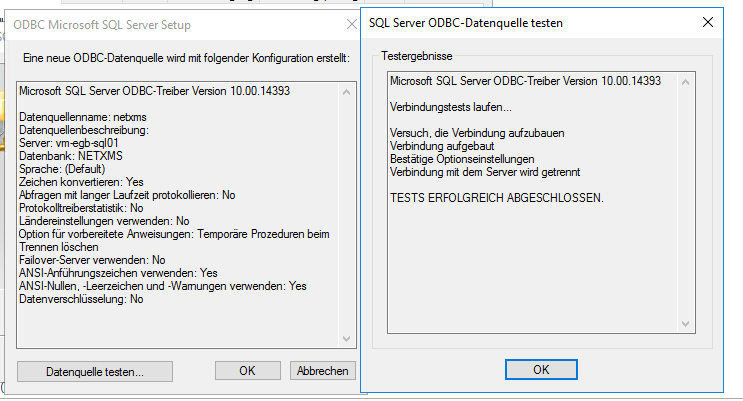
Named Pipes & TCP/IP: EnabledWe are using this SQL server vor several services and it is working properly. We even installed the MS SQL Native Client on the NetXMS Server, but this also didn't help. The configuration of an odbc connection via this native client works properly (see screenshot).
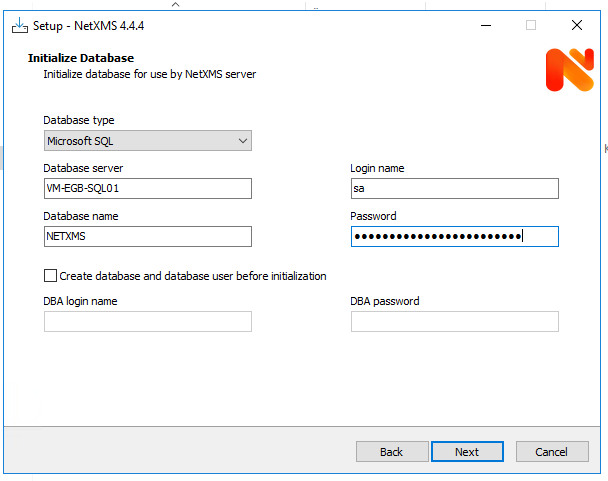
Attached you can find some screenshots of installation etc. We use full installation with tick mark on initialize database. Furthermore it happens also when I use IP address instaed of server name.
Config file netxmsd.conf
#
# Configuration file generated on Thu Nov 30 11:39:15 2023
#

DBDriver=mssql.ddr
DBServer=VM-EGB-SQL01
DBName=NETXMS
DBLogin=sa
DBPassword=***********
LogFile=C:\NetXMS\log\netxmsd.log
Logfile netxmsd.txt:
2023.11.30 11:37:35.365 *I* [logger             ] Log file opened (rotation policy 2, max size 16777216)
2023.11.30 11:37:35.365 *I* [startup            ] Starting NetXMS server version 4.4.4 build tag 4.4-730-g20b6ebeb8a
2023.11.30 11:37:35.365 *I* [logger             ] Debug level set to 0
2023.11.30 11:37:35.365 *I* [config             ] Main configuration file: C:\NetXMS\etc\netxmsd.conf
2023.11.30 11:37:35.365 *I* [config             ] Configuration tree:
2023.11.30 11:37:35.365 *I* [config             ] config
2023.11.30 11:37:35.365 *I* [config             ]  +- server
2023.11.30 11:37:35.365 *I* [config             ]      +- DBDriver
2023.11.30 11:37:35.365 *I* [config             ]      |    value: mssql.ddr
2023.11.30 11:37:35.365 *I* [config             ]      +- DBServer
2023.11.30 11:37:35.365 *I* [config             ]      |    value: VM-EGB-SQL01
2023.11.30 11:37:35.365 *I* [config             ]      +- DBName
2023.11.30 11:37:35.365 *I* [config             ]      |    value: NETXMS
2023.11.30 11:37:35.365 *I* [config             ]      +- DBLogin
2023.11.30 11:37:35.365 *I* [config             ]      |    value: sa
2023.11.30 11:37:35.365 *I* [config             ]      +- DBPassword
2023.11.30 11:37:35.365 *I* [config             ]      |    value: ********
2023.11.30 11:37:35.365 *I* [config             ]      +- LogFile
2023.11.30 11:37:35.365 *I* [config             ]           value: C:\NetXMS\log\netxmsd.log
2023.11.30 11:37:35.365 *I* [db.drv             ] Database driver "mssql.ddr" loaded and initialized successfully
2023.11.30 11:37:35.412 *I* [comm.listener      ] SocketListener/LocalAdmin: listening on 127.0.0.1:21784
2023.11.30 11:37:35.412 *I* [comm.listener      ] SocketListener/LocalAdmin: listening on [127.0.0.1]:21784
2023.11.30 11:38:00.443 *E* [db                 ] Unable to establish connection with database ([Microsoft][ODBC Driver Manager] Der Datenquellenname wurde nicht gefunden, und es wurde kein Standardtreiber angegeben)
Error means in English: Data source name not found and no default driver specified
I hope that there is sb who can help us. Why has NetXMS problems to connect to our db?
Best regards Oli

-
Hi!
Try to use server_name\instance_name in DBServer. Also you can try IP address instead of DNS name.
Check that TCP/IP and named pipes enabled for Native Client.Another alternative is to create ODBC DSN and switch to odbc driver (use DBDriver=odbc instead of DBDriver=mssql). In that scenario you should use ODBC DSN as value for DBServer.
Best regards,
Victor -
@victor said in Installation of NetXMS - Problems connection to MS SQL Server:
Another alternative is to create ODBC DSN and switch to odbc driver (use DBDriver=odbc instead of DBDriver=mssql). In that scenario you should use ODBC DSN as value for DBServer.
Thank you for your answer. I will try this but then I need to initialize the DB manually after the installation. I saw that there is a tool to do that but I can't find a manual how to do it on windows systems.
Do you know where I can find a manual how to do the DB initialization and basic configuration of NetXMS manually?
-
Should be as simple as running
nxdbmgr.exe initfrom command line. It may ask additional information and will show result in console.
Best regards,
Victor -
Ok thx.
So now I'm one step closer but I'm told that there is an error with the login.
SQL server tells me that password is wrong. But the ODBC connection works perfectly - only the script nxdbmgr.exe is dropping that error. The password is correct but the error shows that it is wrong.
Here is my config
#
# Configuration file generated on Thu Nov 30 11:49:44 2023
#

DBDriver=odbc.ddr
DBServer=NETXMS
DBName=NETXMS
DBLogin=netxmsusr
DBPassword=*********
LogFile=C:\NetXMS\log\netxmsd.log
The error only appears in cmd window after sarteing the init process and in sql database log. but not in the logfile of netxms (as it happens through setup process).
As I said the password is working if I test the ODBC connection, but not if i start nxdbmgr.exe. (TCP/IP and named pipes are active for native client connections).
Any ideas?
Edit:
If found this on the following page:
https://learn.microsoft.com/en-us/sql/relational-databases/errors-events/mssqlserver-18456-database-engine-error?view=sql-server-ver16More rare possible cause The error reason An attempt to login using SQL authentication failed. Server is configured for Windows authentication only. can be returned in the following situations. When the server is configured for mixed mode authentication, and an ODBC connection uses the TCP protocol, and the connection doesn't explicitly specify that the connection should use a trusted connection. When SQL Server is configured for mixed mode authentication, and an ODBC connection uses named pipes, and the credentials the client used to open the named pipe are used to automatically impersonate the user, and the connection string doesn't explicitly specify the use of a trusted authentication. To resolve this issue, include TRUSTED_CONNECTION = TRUE in the connection string.Could this be the possible reason for the login problem. I have mixed mode and named pipes active. but I don't know how i should set the trusted connection to true in netxms
Adding "DBDrvParams = Trusted_Connection=Yes" to the config file does not work. -
I would probably try once again with mssql.ddr driver according to Victor's recommendations above.
Also if you do not have exact requirement to use MsSQL, you can install Postgres
-
Thx for your help regarding the connection problem. With ODBC 64bit it worked after I changed the DB User password. We had a # in it and after i removed all special characters the connection worked and tables are initialized.
So this topic can be closed and marked as solved...
-
Ah, right, # is treated as beginning of comment. You can specify password in double quotes (" "), then it can contain # character.
I'm glad that it worked.
Hello! It looks like you're interested in this conversation, but you don't have an account yet.
Getting fed up of having to scroll through the same posts each visit? When you register for an account, you'll always come back to exactly where you were before, and choose to be notified of new replies (either via email, or push notification). You'll also be able to save bookmarks and upvote posts to show your appreciation to other community members.
With your input, this post could be even better 💗
Register Login